
Add
Screenshot Capture
Screenshot prices, specs and listings into a project.
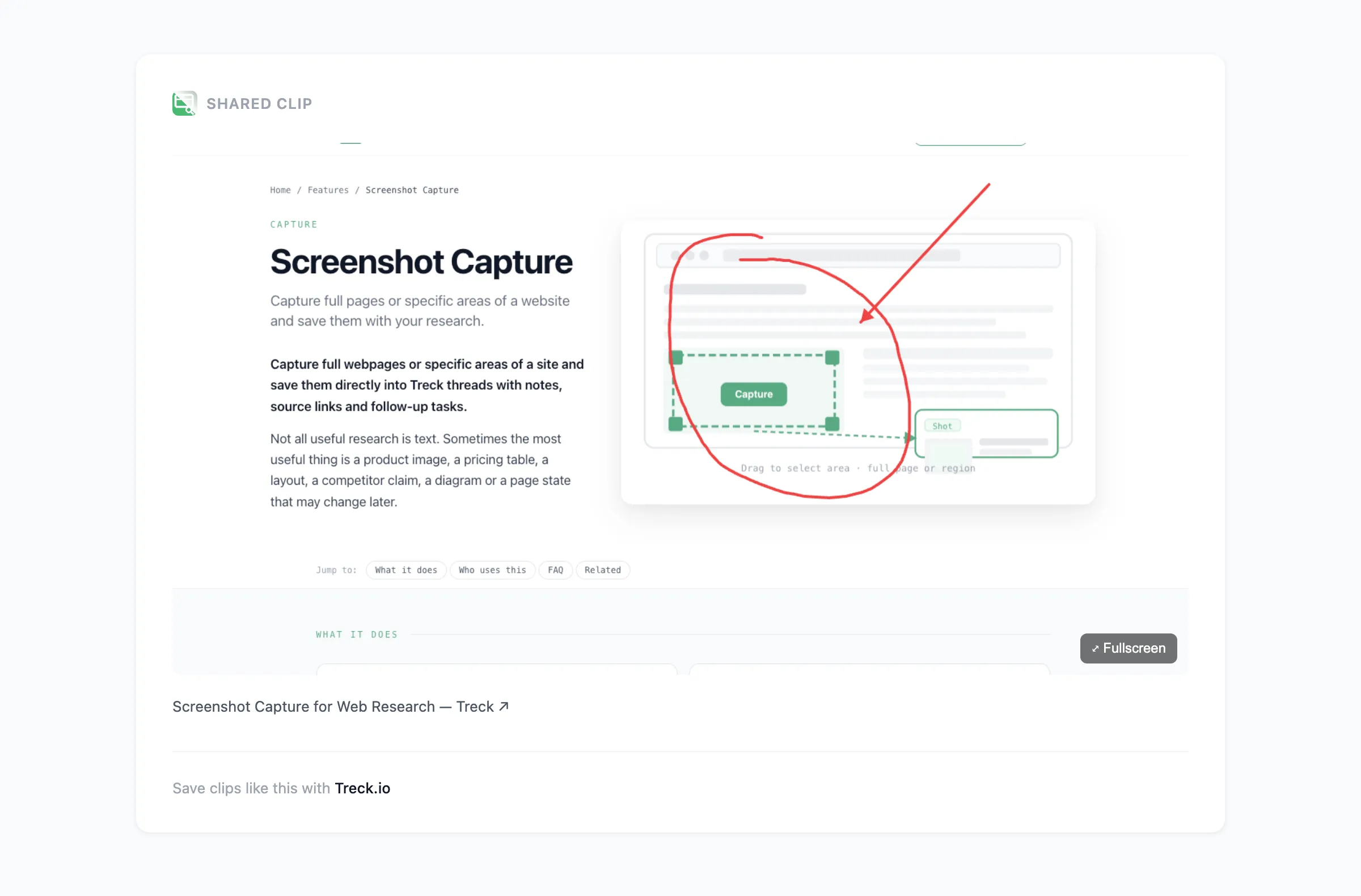
Capture full webpages or specific areas of a site and save them directly into Treck projects with notes, source links and follow-up tasks.
Not all useful research is text. Sometimes the most useful thing is a product image, a pricing table, a layout, a competitor claim, a diagram or a page state that may change later.
Real example
See a real captured clip
A screenshot clip captured and shared straight from Treck. Every clip keeps the source link back to the original page and opens at its own URL — no Treck account needed to view it.
Opens in a new tab · no login needed
What it does
Full-page screenshot
Save a complete webpage screenshot into a project to preserve the wider context.
Area screenshot
Drag around a section of a page to create a focused screenshot clip.
Notes and tasks
After saving a screenshot, add notes, labels, todos and share the clip with others.
Source link attached
The original page URL is saved with every screenshot clip automatically.
Treck lets you capture what you need — the whole page for context or just the relevant section — and keeps it alongside your notes and tasks in a shared project.
Who uses this
- Supplier product and pricing pages
- Competitor claims and landing pages
- Product listings and images
- Website inspiration and design references
- Bug or issue capture for project teams
Common questions
Can I capture a full webpage screenshot?
Can I capture only part of a webpage?
Can I add a note to a screenshot?
Can I share a screenshot clip?
Last updated: 1 June 2026
Screenshot Capture, free to use
Install Treck and start in under 30 seconds.